Macbuntu is an open-source program designed to transform the Linux desktop appearance and layout into a Mac OS X environment. It will install all the necessary apps, icons, and other resources to make your desktop look just like OS X.
You can read the "Software Requirements Specification for MacBuntu v10.10", a 21.9 MB PDF document, to find out more about Macbuntu.
You should be aware that this script significantly changes the desktop.
Also, keep in mind that running scripts with root privileges is dangerous. If you do not trust the software or you are unsure about the origin of this software, please do not install.
Also, keep in mind that running scripts with root privileges is dangerous. If you do not trust the software or you are unsure about the origin of this software, please do not install.
Macbuntu guarantee the safe code only if the application comes from this address
https://sourceforge.net/projects/macbuntu/
https://sourceforge.net/projects/macbuntu/
The Macbuntu installation script automatically installs and configures all necessary system components to mimic Mac OS X appearance:
* Paw-OSX and Paw-Ubuntu Plymouth themes
* Macbuntu sound theme
* Macbuntu GTK theme based on GTK Leopard
* Macbuntu-Icons based on Mac4Lin and Faenza Icons
* Macbuntu-Cursors based on Shere Khan X
* Mac OS X backgrounds
* Mac OS X fonts
* Paw-OSX and Paw-Ubuntu Plymouth themes
* Macbuntu sound theme
* Macbuntu GTK theme based on GTK Leopard
* Macbuntu-Icons based on Mac4Lin and Faenza Icons
* Macbuntu-Cursors based on Shere Khan X
* Mac OS X backgrounds
* Mac OS X fonts
The script also installs:
* Compiz Extras
* Application Menu
* Docky
* Ubuntu-Tweak
* Cheese
It changes the configuration for:
* Login screen
* Metacity
* Compiz effects
* Window theme
* Backgrounds
* Cursors
* Icons
* Top panel
If a previous version of Macbuntu is installed it will be overwritten.
* Compiz Extras
* Application Menu
* Docky
* Ubuntu-Tweak
* Cheese
It changes the configuration for:
* Login screen
* Metacity
* Compiz effects
* Window theme
* Backgrounds
* Cursors
* Icons
* Top panel
If a previous version of Macbuntu is installed it will be overwritten.
To install Macbuntu for Linux Mint 10, which is based on Ubuntu 10.10 Maverick Meerkat, just run the following four lines in a Terminal window to download and install the 42.0 MB package:
wget https://downloads.sourceforge.net/project/macbuntu/macbuntu-10.10/v2.3/Macbuntu-10.10.tar.gz -O /tmp/Macbuntu-10.10.tar.gz
tar xzvf /tmp/Macbuntu-10.10.tar.gz -C /tmp
cd /tmp/Macbuntu-10.10/
./install.sh force
Also, there is a Gnome GlobalMenu patch for Macbuntu 10.10 that you should install, available here.
To install Macbuntu for Linux Mint 9, which is based on Ubuntu 10.04 Lucid Lynx, just run the following four lines in a Terminal window to download and install the 42.2 MB package:
wget https://downloads.sourceforge.net/project/macbuntu/macbuntu-10.04/v2.3/Macbuntu-10.04.tar.gz -O /tmp/Macbuntu-10.04.tar.gz
tar xzvf /tmp/Macbuntu-10.04.tar.gz -C /tmp
cd /tmp/Macbuntu-10.04/
./install.sh force
tar xzvf /tmp/Macbuntu-10.04.tar.gz -C /tmp
cd /tmp/Macbuntu-10.04/
./install.sh force
When the installation is finished, the script asks about the optional installation of some extras:
* Firefox theme Vfox3_Basic and MacOSX Theme
* Thunderbird theme Leopard Mail-Default-Aqua
* Chrome theme GTK Leopard Chrome Theme
* Firefox theme Vfox3_Basic and MacOSX Theme
* Thunderbird theme Leopard Mail-Default-Aqua
* Chrome theme GTK Leopard Chrome Theme
After the installation, it is required to restart your computer.
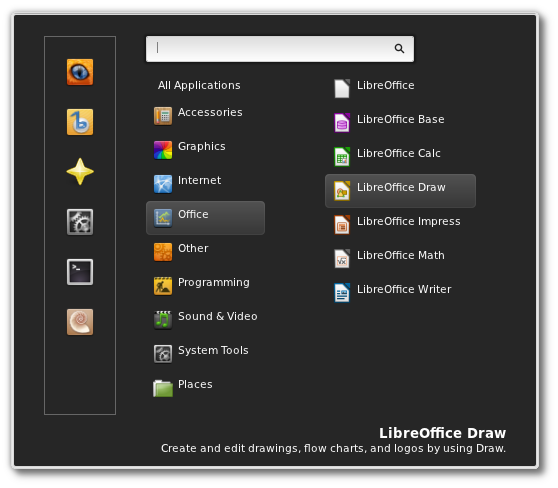
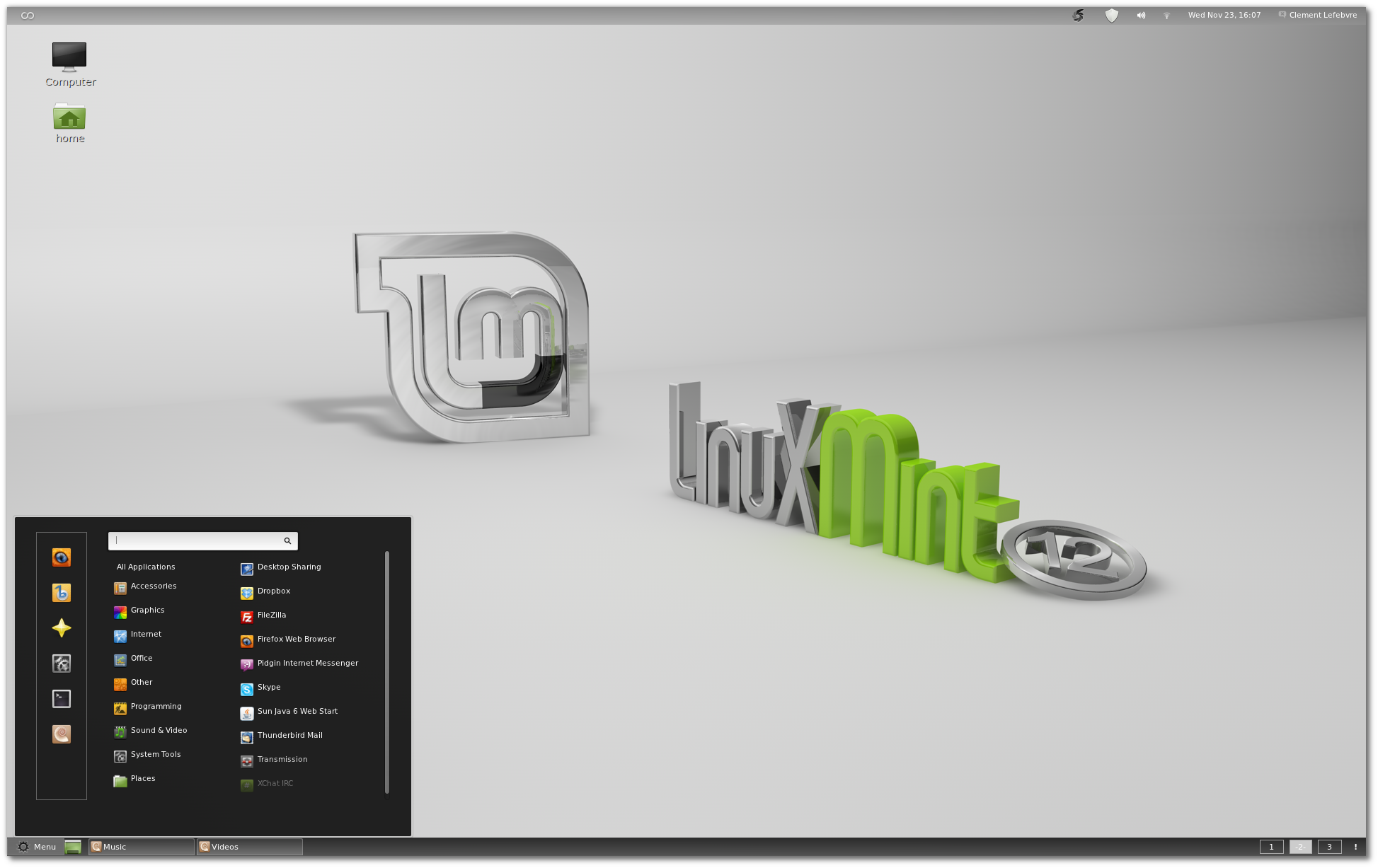
To use Mint Menu with your new desktop, you can add it in the top panel by right-clicking on the panel and choosing "Add to panel". There you can search for "mintMenu" and add it to the panel.
If you decide that the Mac-themed desktop is not what you want for your desktop, you can just uninstall Macbuntu.
To remove Macbuntu 10.10 v2.3 from Linux Mint 10, open a terminal and type the following commands:
cd ~/.macbuntu/10.10-2.3/
./uninstall.sh
To remove Macbuntu 10.04 v2.3 from Linux Mint 9, open a terminal and type the following commands:
cd ~/.macbuntu/10.04-2.3/
./uninstall.sh
After the removal of Macbuntu, it is required to restart your computer.
You may see that the default theme after the uninstallation is not the right one, so you can just select your favourite desktop theme from the Appearance Preferences available in the Mint Menu.